Welcome to CRS Network Radio Help

Using Your CRS Network Radio

1.1 Overview: The CRS PoC Network uses two key technologies: Zello - a push-to-talk app that turns your device into a walkie-talkie, and Traccar - a GPS tracking platform that monitors device locations in real-time. CRS uses this system because it provides instant voice communication and precise location tracking over cellular networks, enabling effective coordination during emergency responses without relying on traditional radio infrastructure.

1.2 Why CRS uses it: CRS primarily uses Zello for communications, but will still utilize VHF radios when the need arises or when cellular coverage is limited. Our PoC Radios utilize Roaming SIM Cards which allows the radios to work seamlessly across O2, Vodafone and Three networks across Northern Ireland (And Europe as a whole if required). Additionally, all Zello communications are automatically recorded and transcribed, allowing for easier recall of messages with timestamps and location data for post-incident analysis and documentation.

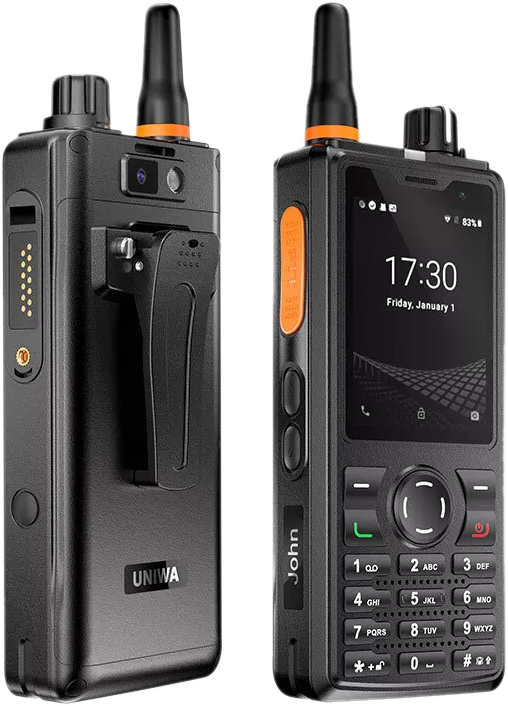
Your device is a Uniwa F41 4G PoC Network Radio which is basically an Android device with a very loud speaker and a dedicated PTT key.

Uniwa F41 4G PoC Network Radio
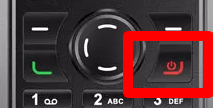
2.1 Powering On: To power on the device, press and hold the Power Button for approximately 5 seconds.

Power Button
2.2 Volume Control: Volume control is via the 2 keys below the PTT on the left side of the radio.

2.3 Channel Selection: Channel selection is controlled by the knob at the top, which works to switch Zello channels.

2.4 The Home Screen: The home screen should have 2 main apps - Zello and Traccar Client - along with a folder containing various unused apps.

Device Home Screen Layout

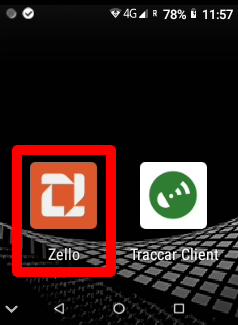
Opening Zello: To start using Zello, tap the Zello icon on the main screen to open the application.

Zello App Icon
3.1 The Channels: Channels are group communication rooms where multiple users can talk and listen. Think of them like radio channels - when you select a channel, you can hear all conversations on that channel and transmit to everyone listening.

Zello Channels Interface
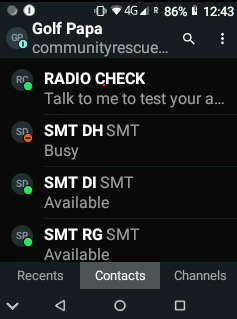
3.2 The Contacts: Contacts show individual users you can communicate with directly. This allows for private one-to-one conversations separate from the main channels. You can see who's online and available to talk.

Zello Contacts Interface
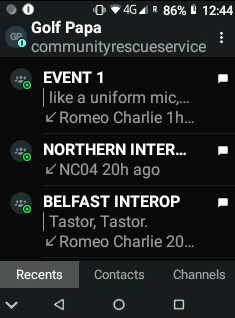
3.3 The Recents: Recents displays your communication history, showing recent channels you've used and contacts you've spoken with. This makes it easy to quickly return to recent conversations and replay missed messages.

Zello Recents Interface
3.4 Hearing All Channels: To hear all communications on all channels, go to the Channel list screen. This allows you to hear all comms from every channel. To only hear a channel you are working on, go to the next step, 3.5.

Channel List Screen
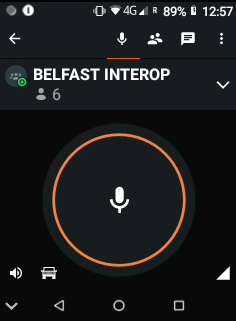
3.5 Entering a Channel: To enter and focus on a single channel, for example Belfast Interop, select the channel to enter it. You can enter a channel either by using the touch screen to tap on the channel name, or by using the channel knob at the top of the device. This will stop all communications from being heard on other channels, allowing you to focus on your selected channel.
Entering a Focused Channel

Below is a list of channels used across the province. What you see will differ depending on which region you are in. In this example, I am in Belfast so I will see Belfast Interop Channel.

Regional Channels:
• Western Interop
• Northern Interop
• Central Interop
• Belfast Interop

Shared Channels (Available Province-wide):
• Search 1
• Search 2
• Event 1
• Event 2

4.1 Regional Access: Belfast Interop Channel is only available to users from Belfast District who will not see Western Interop, and vice versa. Each region only sees their specific Interop channel.

4.2 Shared Access: Search 1 and 2, as well as Event 1 and 2, are shared across the province and visible to all users regardless of their region.

4.3 Channel Usage: Use your regional Interop channel for local coordination and the shared Search/Event channels for province-wide operations.

Coming Soon

6.1 Charging: Charging can be achieved either by the supplied docking stations or via Type-C USB via the port on the bottom of the radio.

6.2 IP Rating: The radio has an IP54 rating, so the radio needs to be kept away from water and an external mic (supplied) should be used to keep the radio dry and away from the elements.

6.3 Keep It Charged: Always carry a power bank.

6.4 Test Before Use: Run a quick audio and GPS test before deployment.

6.5 Stay on the Right Channel: Only use "Search 1 and Search 2" during incidents unless directed otherwise.

7.1 No Sound: Check volume and make sure Zello is connected.

7.2 Not Tracking: Ensure GPS is enabled and Traccar app is running.

7.3 App Crashes: Restart the device. If issues continue, contact CRS tech support.